SVG PNG 변환기 for non-developers
Designers, editors, marketers, and students can export SVG artwork as ordinary PNG, JPG, or WebP images without opening a vector editor.
무료 브라우저 SVG 내보내기 도구
Upload SVG files or paste SVG code, then export clean raster images for icons, logos, blog graphics, PPT slides, app assets, favicons, and social covers. This SVG to PNG Converter runs in your browser and shows compatibility warnings before download.
SVG PNG 변환기 is for everyday image export, not React component generation.
Designers, editors, marketers, and students can export SVG artwork as ordinary PNG, JPG, or WebP images without opening a vector editor.
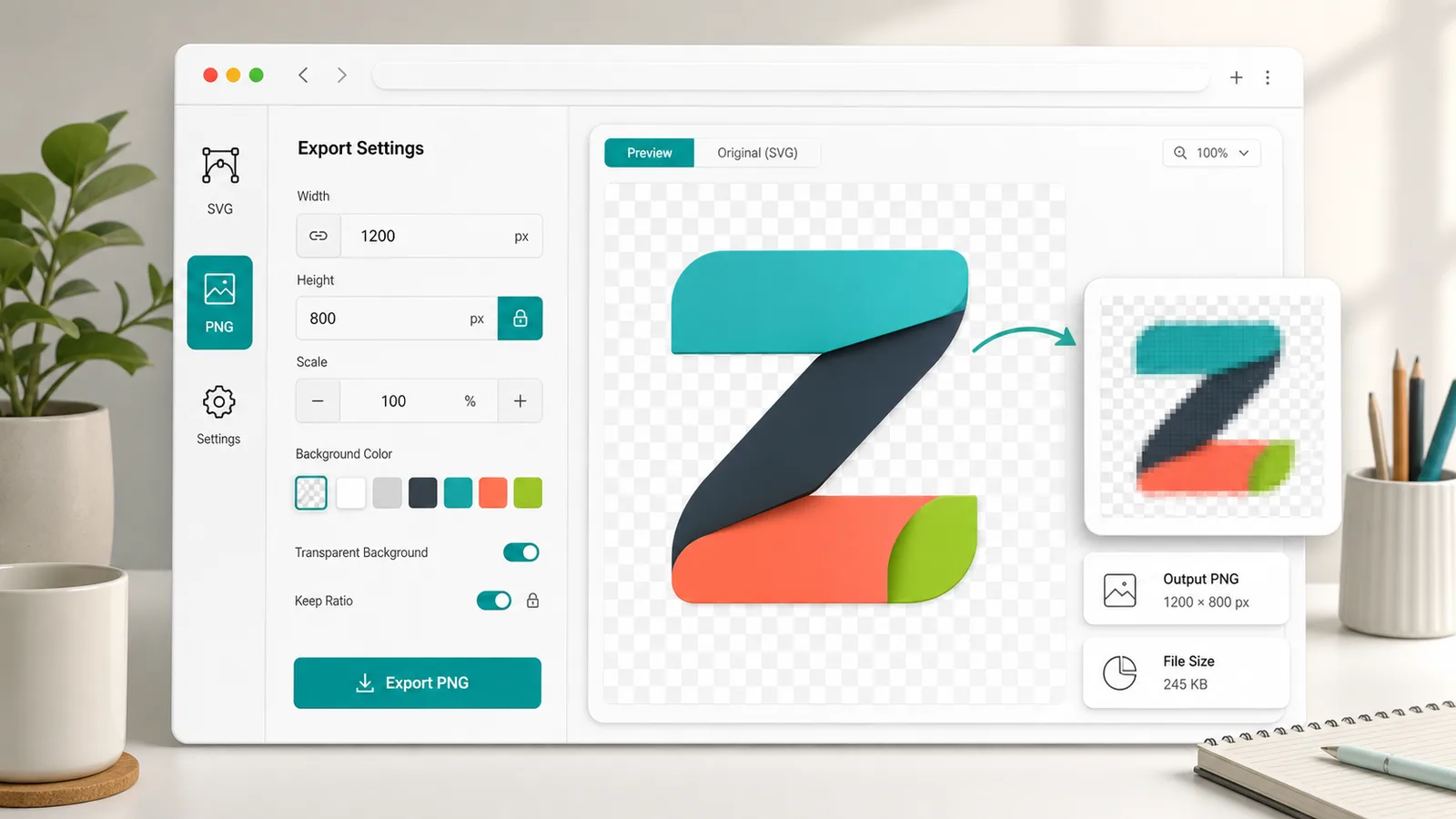
Set width, height, scale, and keep-ratio controls so icons, logos, favicons, slides, and social covers leave the browser at the size you need.
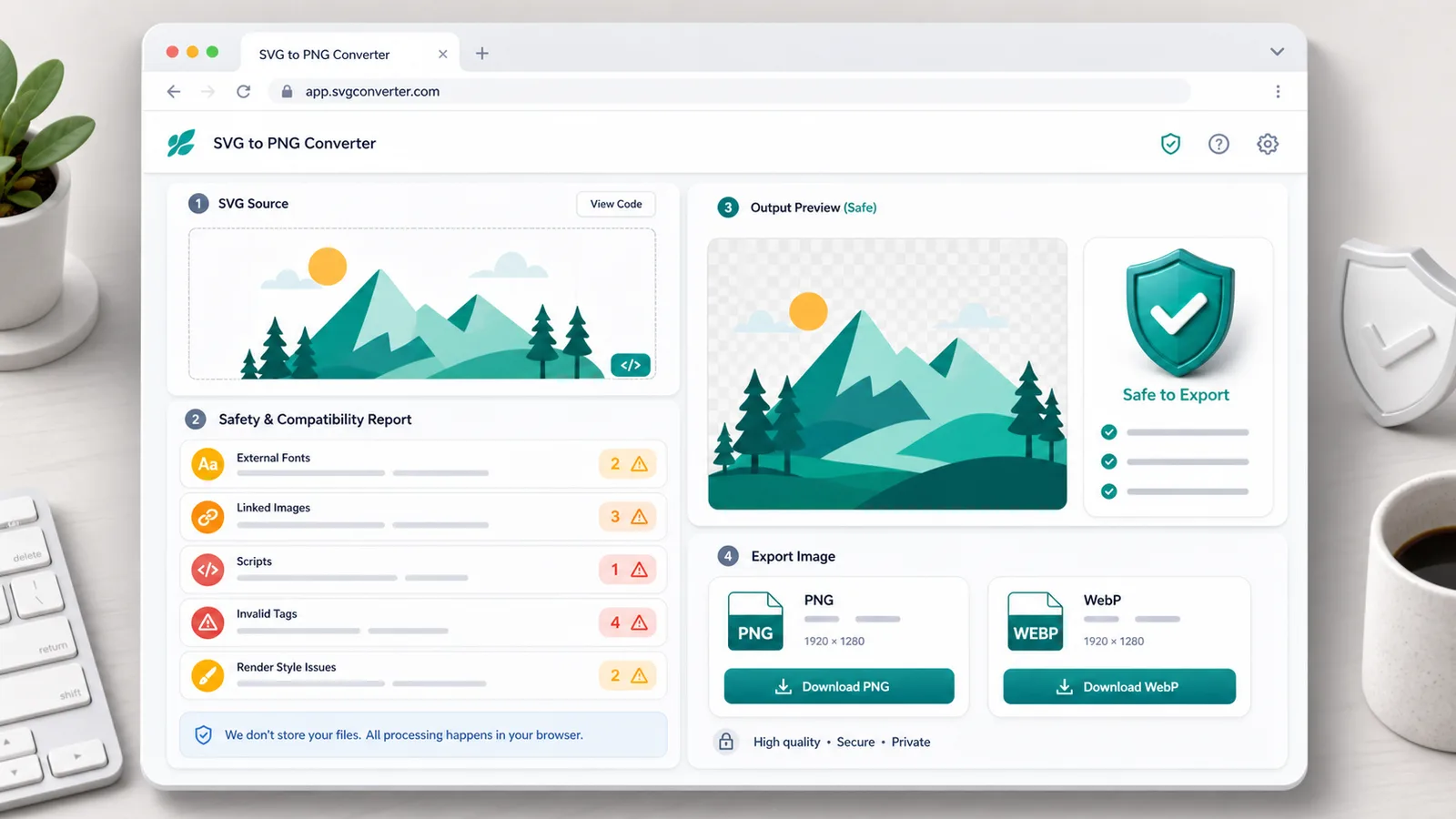
The converter flags external fonts, linked images, scripts, invalid tags, and styles that may fail during browser-based SVG rendering.
SVG PNG 변환기 combines batch conversion, previews, background control, and compatibility notes in one local workflow.
Choose the raster format that fits your destination. PNG keeps transparency, JPG is useful for white-background graphics, and WebP keeps web assets compact.
Keep alpha for icon export, flatten artwork to white for documents, or pick a brand background color before downloading.
Add several SVG files, convert them with the same settings, preview each result, then download one file or a ZIP package.
SVG PNG 변환기 shows SVG render preview, output dimensions, file size, and transparency status so you can verify the image before use.
Files and pasted SVG code are processed in your browser tab. The workflow is fast for icon export, logo preview, blog graphics, and presentation assets.
External fonts, remote images, scripts, unsupported tags, and hard-to-render styles are reported before export so surprises are easier to fix.
Use SVG PNG 변환기 in three steps for icon export, logo preview, favicon preprocessing, and social media image preparation.
Upload one or more .svg files or paste a complete <svg> block into SVG PNG 변환기. The source preview renders without inserting raw SVG into the page DOM.
Select PNG, JPG, or WebP, then set width, height, scale, background mode, custom color, and keep-ratio behavior.
Review the rendered SVG preview, output size, file size, transparency state, and warnings. Download a single image or a ZIP when converting in batch.
SVG PNG 변환기 supports the practical paths people use after receiving an SVG asset.
Drop multiple SVG icons or logo variants into the converter, choose PNG, JPG, or WebP, and download a ZIP for websites, slides, stores, and posts.
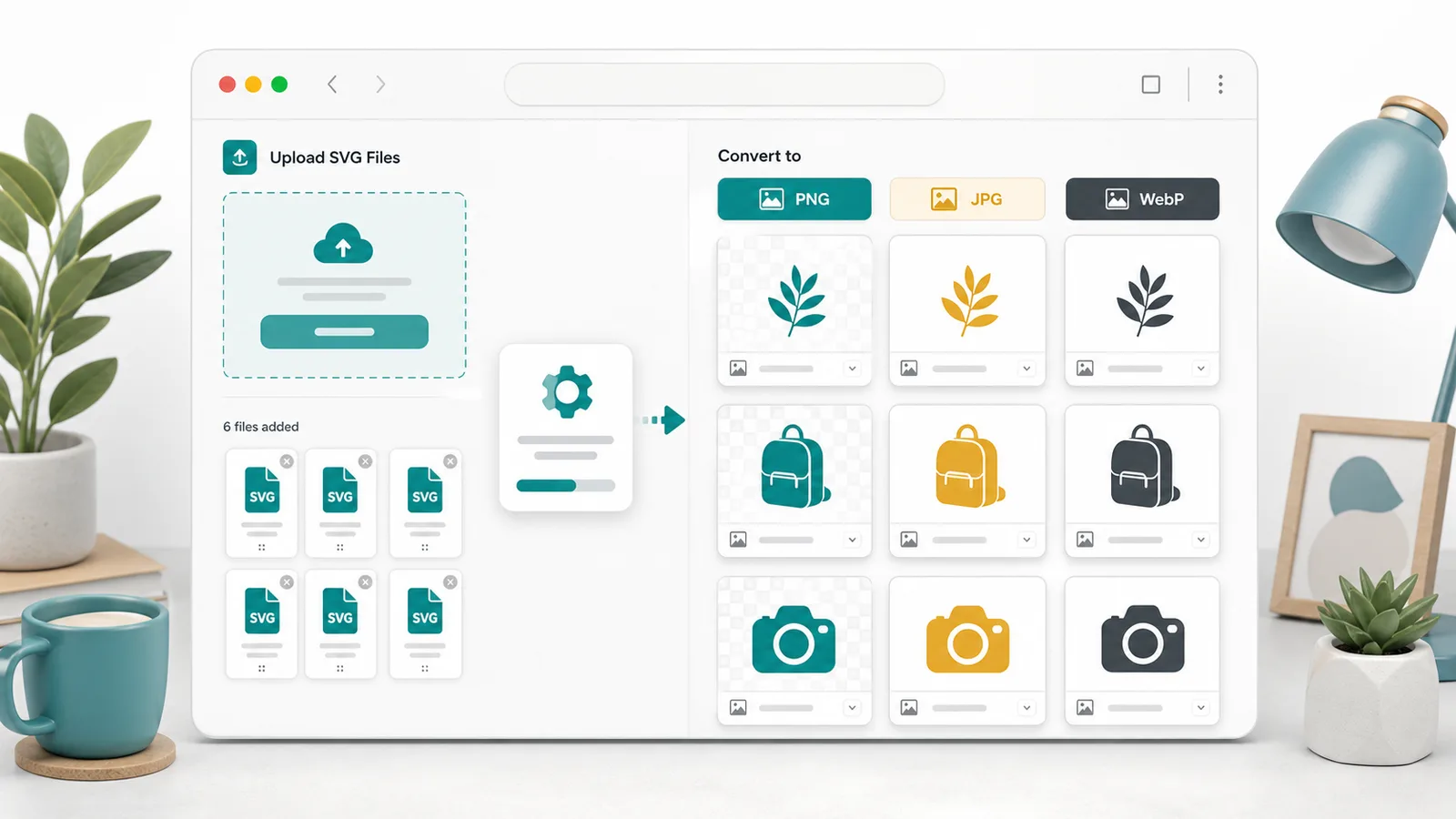
Control width, height, scale, transparent background, white background, custom color, and ratio lock before generating the final raster file.
Spot external fonts, linked images, scripts, unsupported tags, and render styles that can make SVG-to-image export differ from the source design.
Use SVG PNG 변환기 when SVG is the source but a normal image file is the deliverable.
Export transparent PNG icons, white-background JPG previews, or compact WebP logo images for handoff.
Create blog illustrations, PPT graphics, app screenshots, App Store support assets, and social media cover material from SVG artwork.
Preprocess favicon artwork, Open Graph images, and design-system assets before passing them to other image tools.
Answers about SVG PNG 변환기, transparency, SVG safety, and format choices.
SVG PNG 변환기 exports ordinary PNG, JPG, and WebP image files for design and content workflows. SVG to React converts SVG markup into frontend components for developers.
PNG and WebP can preserve transparent backgrounds when transparent mode is selected. JPG does not support alpha, so JPG export is flattened to a solid background.
Yes. Upload multiple SVG files, apply one set of output settings, preview the results, then download individual files or a ZIP package.
Browser image rendering can block, miss, or flatten external resources. Converting text to outlines and embedding images as data URIs makes exported PNG, JPG, and WebP files more predictable.
No. SVG PNG 변환기 processes uploaded files and pasted SVG code in the browser. Rendering and downloads happen locally in the current tab.
SVG PNG 변환기 is ready for icons, logo previews, blog images, PPT graphics, app assets, favicons, and social media covers.
Free browser tool - no signup