Spreadsheet tables need publishing formats
테이블 변환기 turns pasted Excel, Google Sheets, CSV, and TSV rows into Markdown Table or HTML Table output for README files, blogs, Notion, and Obsidian.
무료 개발자 도구
Excel, Google Sheets, CSV, TSV, Markdown 표, HTML 표, 정렬 텍스트를 붙여넣고 CSV, Markdown, HTML로 로컬 변환합니다.
테이블 변환기 keeps table cleanup focused on platform-to-platform formatting instead of data modeling.
테이블 변환기 turns pasted Excel, Google Sheets, CSV, and TSV rows into Markdown Table or HTML Table output for README files, blogs, Notion, and Obsidian.
테이블 변환기 detects delimiters, pads missing cells, removes empty rows or columns, and reports when column counts are inconsistent.
테이블 변환기 complements CSV to JSON and Markdown HTML: it specializes in table formats, not full documents or JSON structures.
테이블 변환기 supports everyday table format conversion with copy, download, alignment, cleanup, and warnings.
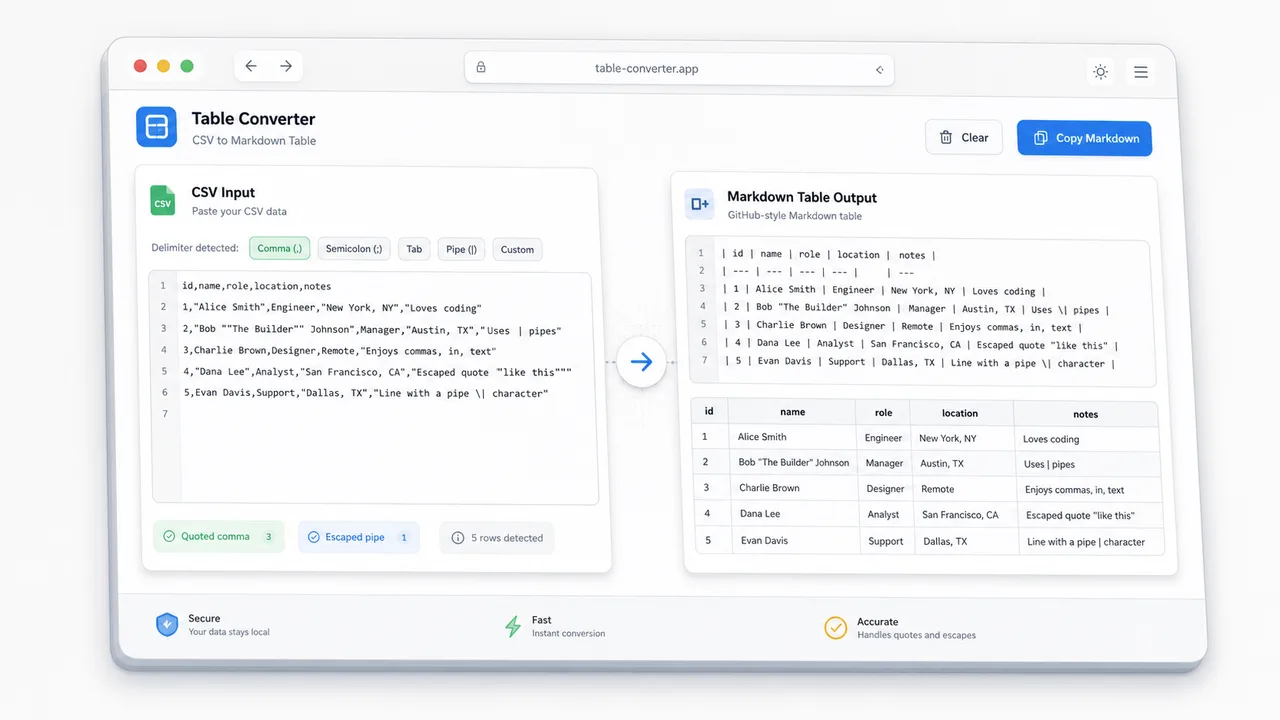
테이블 변환기 handles quoted fields, commas inside quotes, escaped quotes, tab-separated values, and delimiter detection.
테이블 변환기 escapes Markdown pipes, inserts alignment markers, and can use the first row as the table header.
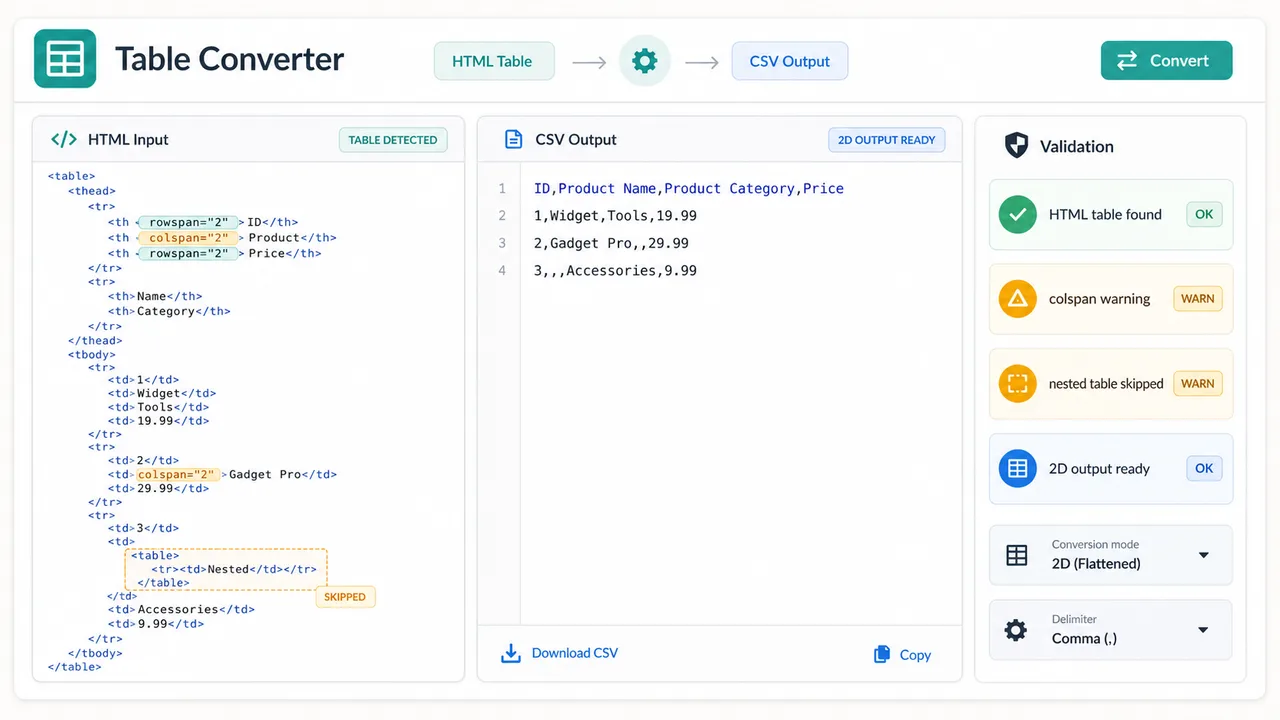
테이블 변환기 reads simple HTML tables and warns when rowspan, colspan, nested tables, or complex styles may flatten imperfectly.
테이블 변환기 treats copied spreadsheet cells as tab-separated table data so editors can move quickly into Markdown Table or CSV.
테이블 변환기 can remove empty rows, remove empty columns, and pad missing cells to keep CSV and Markdown output regular.
테이블 변환기 generates browser-local output that can be copied or downloaded as .csv, .md, or .html.
테이블 변환기 is designed for quick paste, inspect, convert, and export workflows.
Add CSV, TSV, Markdown Table, HTML Table, Excel copied cells, Google Sheets copied cells, or aligned text into 테이블 변환기.
Choose CSV to Markdown Table, Markdown Table to CSV, CSV to HTML Table, HTML Table to CSV, TSV to Markdown Table, or let 테이블 변환기 auto-detect the input.
Check 테이블 변환기 status messages for inconsistent columns, cleaned empty columns, escaped Markdown cells, delimiter failures, or complex HTML limitations, then copy or download.
테이블 변환기 focuses on practical table movement between developer docs, content systems, and spreadsheet tools.
Paste CSV with quoted commas, clean the rows, escape Markdown pipes, and export a README-ready Markdown Table.
Parse simple HTML tables while warning about rowspan, colspan, nested tables, and styles that do not map cleanly to CSV.
Move table content between Excel, Google Sheets, Notion, Obsidian, GitHub README files, and blog CMS editors.
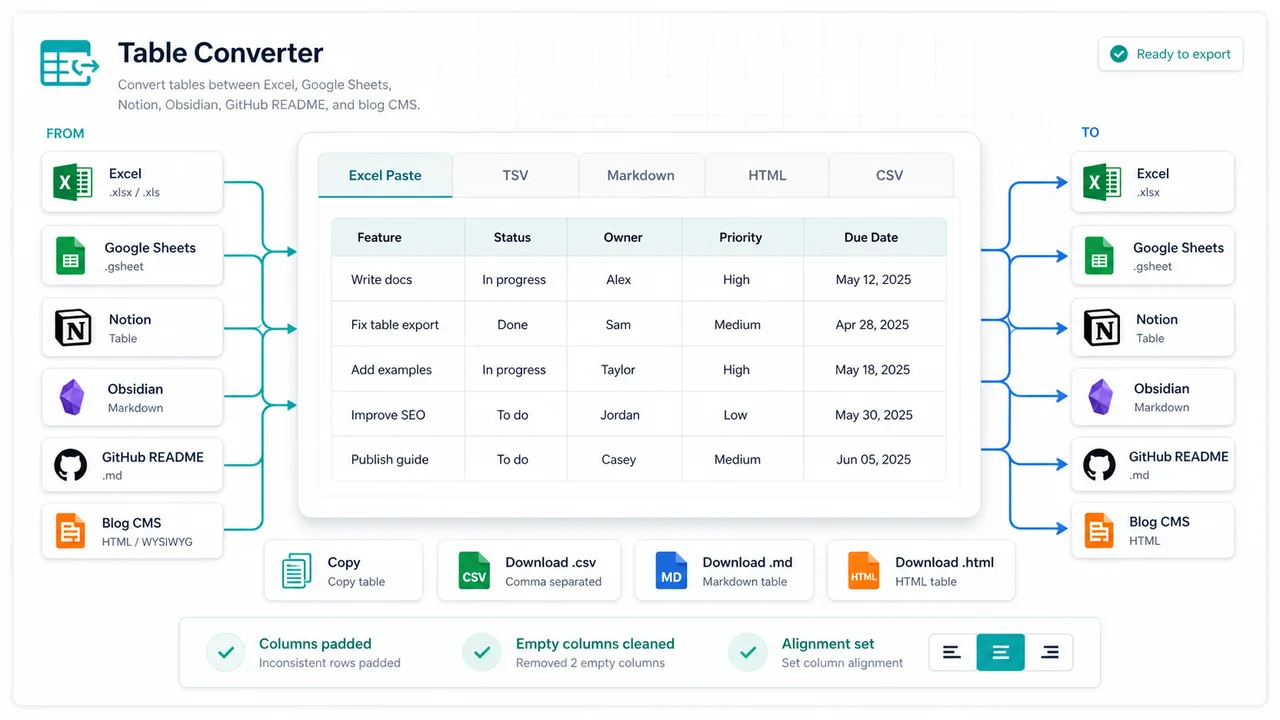
테이블 변환기 helps developers, content editors, SEO teams, bloggers, README writers, and note-taking users clean tables fast.
Use 테이블 변환기 to turn CSV exports into Markdown Table snippets for GitHub README files, changelogs, and docs.
Use 테이블 변환기 to convert spreadsheet research tables into HTML Table or Markdown Table blocks before publishing.
Use 테이블 변환기 to move tables between Notion, Obsidian, Google Sheets, and plain CSV without rebuilding columns by hand.
Common questions about 테이블 변환기, table parsing, delimiters, Markdown escaping, and HTML limitations.
테이블 변환기 accepts Excel or Google Sheets pasted tables, CSV, TSV, Markdown Table, HTML Table, and regular aligned text. It outputs CSV, Markdown Table, or HTML Table depending on the selected direction.
Yes. CSV parsing supports quoted fields, commas inside quotes, and escaped double quotes before creating Markdown Table, HTML Table, or CSV output.
CSV and Markdown Table represent regular two-dimensional tables. HTML features such as rowspan, colspan, nested tables, and heavy styling can lose layout meaning when flattened into CSV or Markdown.
No. The conversion runs in your browser, and pasted table content is not uploaded by this tool.
Paste a table, convert CSV, Markdown Table, HTML Table, TSV, or Excel copied cells, then copy or download the cleaned result.
로컬 전용 - 업로드 없음