Website uploads reject HEIC
Many profile forms, CMS uploads, and marketplace image fields expect JPG or PNG instead of iPhone HEIC files.
Media & Conversion
Upload HEIC or HEIF photos exported from iPhone, iPad, or Mac, convert them to JPG or PNG locally, compare file sizes, and download single images or a ZIP batch.
HEIC is efficient on Apple devices, but it often blocks everyday upload, Windows, document, and email workflows.
Many profile forms, CMS uploads, and marketplace image fields expect JPG or PNG instead of iPhone HEIC files.
Recipients may not have HEIC codecs installed, so a JPG copy is often the fastest way to share photos.
Documents, email attachments, and social platforms are easier to handle with widely compatible JPG or PNG files.
Focused only on HEIC and HEIF so the controls match the real iPhone photo problem.
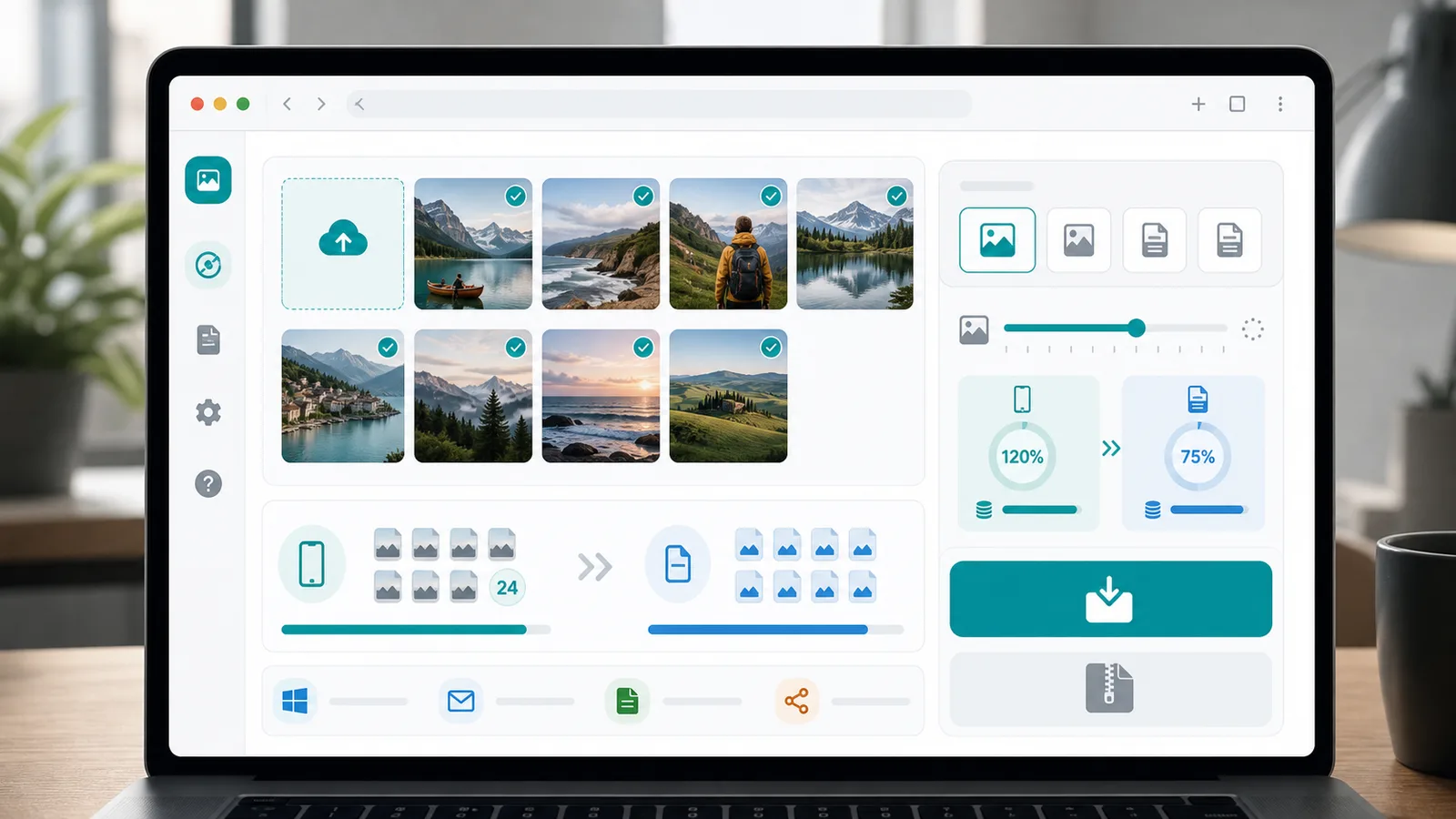
Drop several HEIC or HEIF files, convert them in one browser session, then download single files or a ZIP.
Choose JPG for smaller compatible photos or PNG when you need a lossless output from the decoded image.
See whether conversion worked, the browser cannot decode that HEIC file, or the file is damaged or not recognized.
Convert Apple HEIC photos without sending them to a server.
Drop HEIC or HEIF files exported from iPhone, iPad, or Mac into the upload area.
Open toolSelect the output format, adjust JPG quality, and choose whether to remove or try to keep EXIF metadata.
Run the conversion, compare original and converted file sizes, then download one image or the ZIP batch.
From Apple photo export to compatible files, every step stays in the browser.
The browser reads iPhone, iPad, and Mac HEIC files locally and exports compatible JPG or PNG copies.
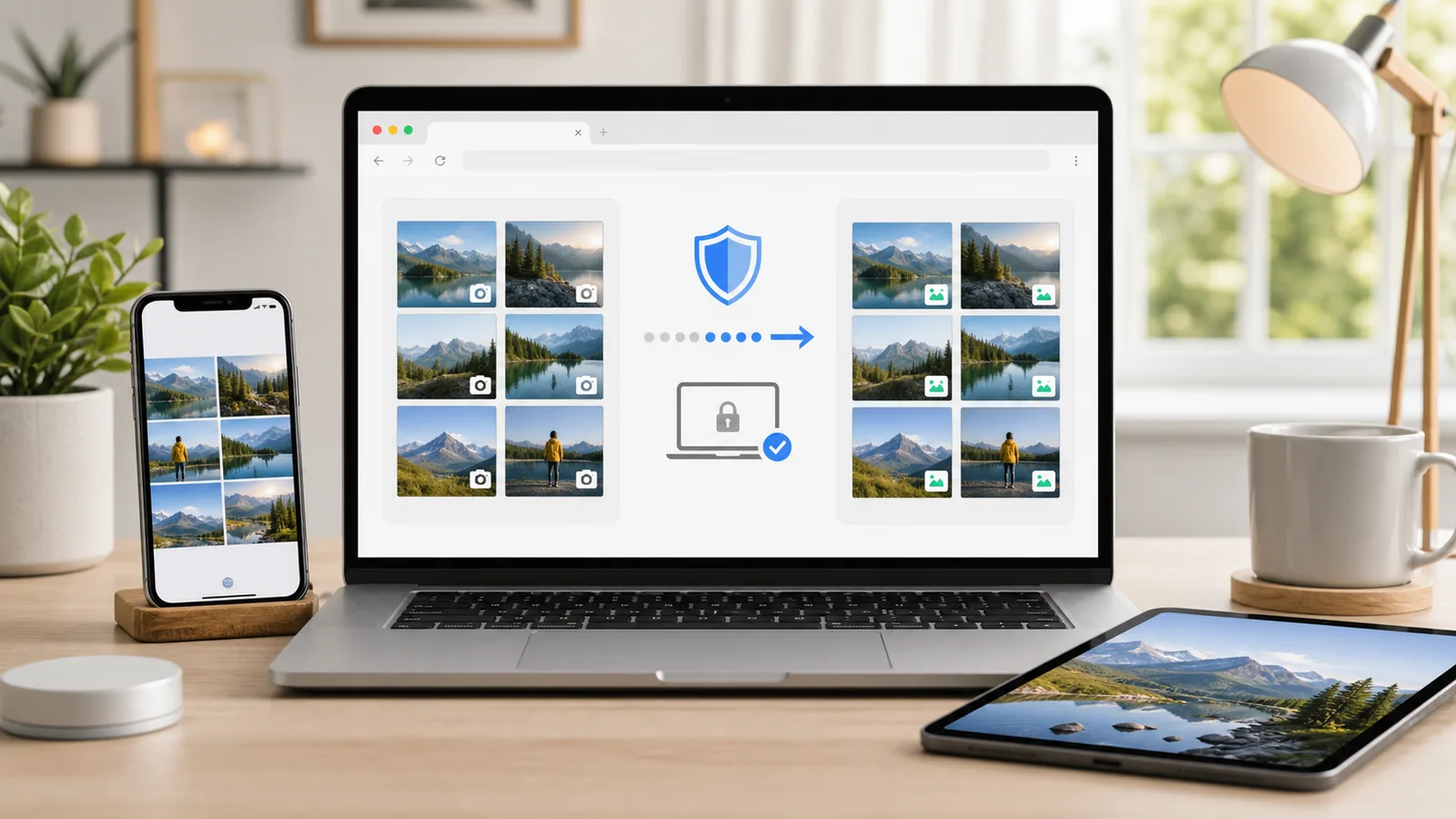
Use the output selector, JPG quality slider, EXIF option, and file size comparison before packaging the ZIP.
If a HEIC file uses HDR, Live Photo, unsupported profiles, or damaged data, the result area shows a specific failure state.
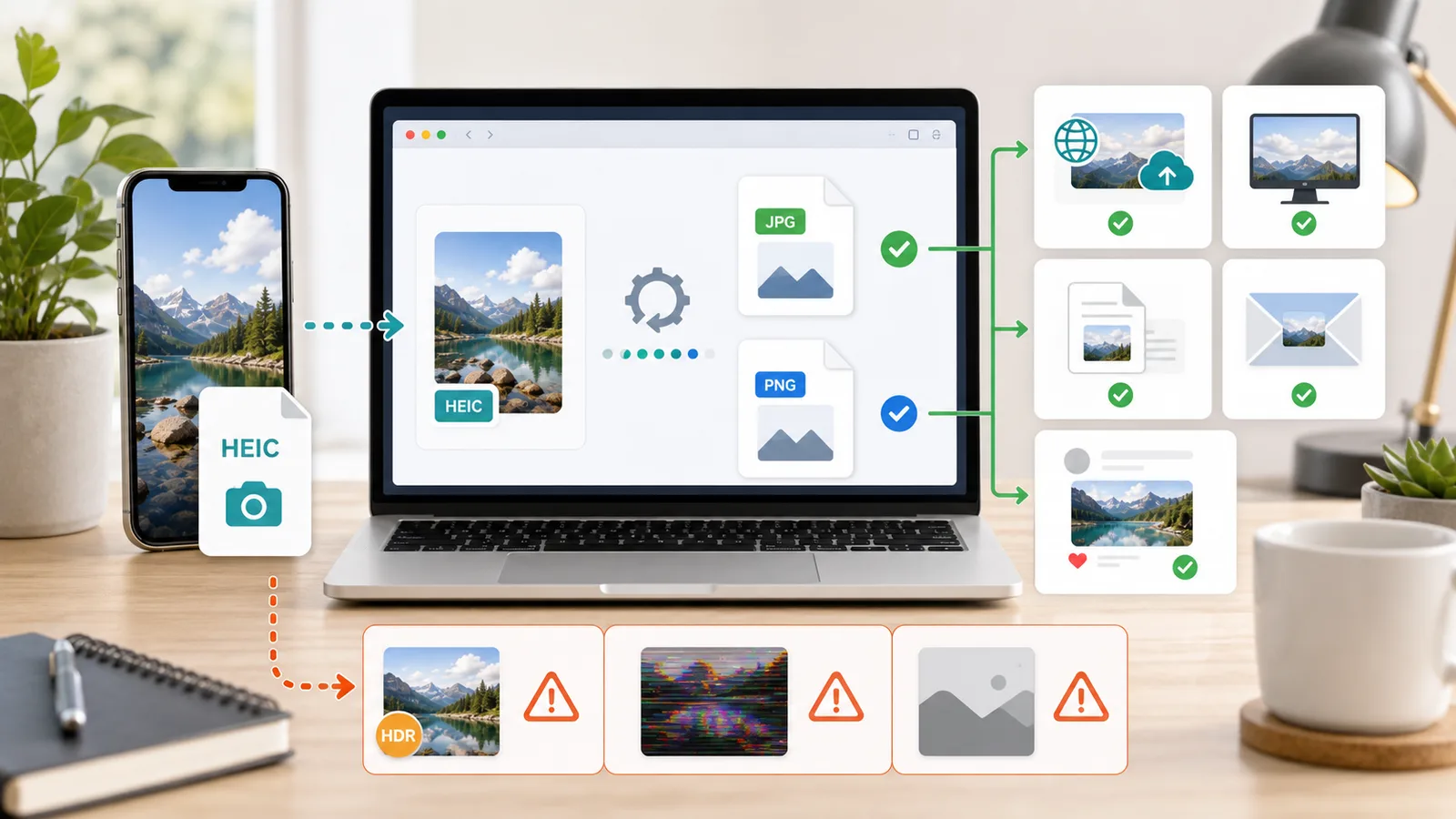
Use this HEIC-focused converter when compatibility matters more than keeping Apple-only originals.
Prepare JPG copies for forms, CMS media libraries, school portals, marketplaces, and support tickets.
Send photos to Windows users or place them into slides, reports, resumes, and Word documents.
Create lighter JPG files for email attachments and PNG copies for platforms that reject HEIC.
Common questions about local HEIC and HEIF conversion.
No. Files are processed locally in your browser. The page uses browser-side HEIC decoding and ZIP packaging, so your photos are not sent to a server.
Some files use HDR, depth, Live Photo, sequence, or HEIC profiles that the browser decoder cannot handle. Very large files can also fail when the tab runs out of memory.
The tool includes an EXIF choice, but browser HEIC decoders often do not expose original metadata. If preserving camera metadata is critical, keep your original HEIC as the archival copy.
Convert the next iPhone photo batch into compatible JPG or PNG files before uploading, emailing, documenting, or sharing.