Long share titles
See when the main promise may disappear behind truncation.
Free SEO Tool
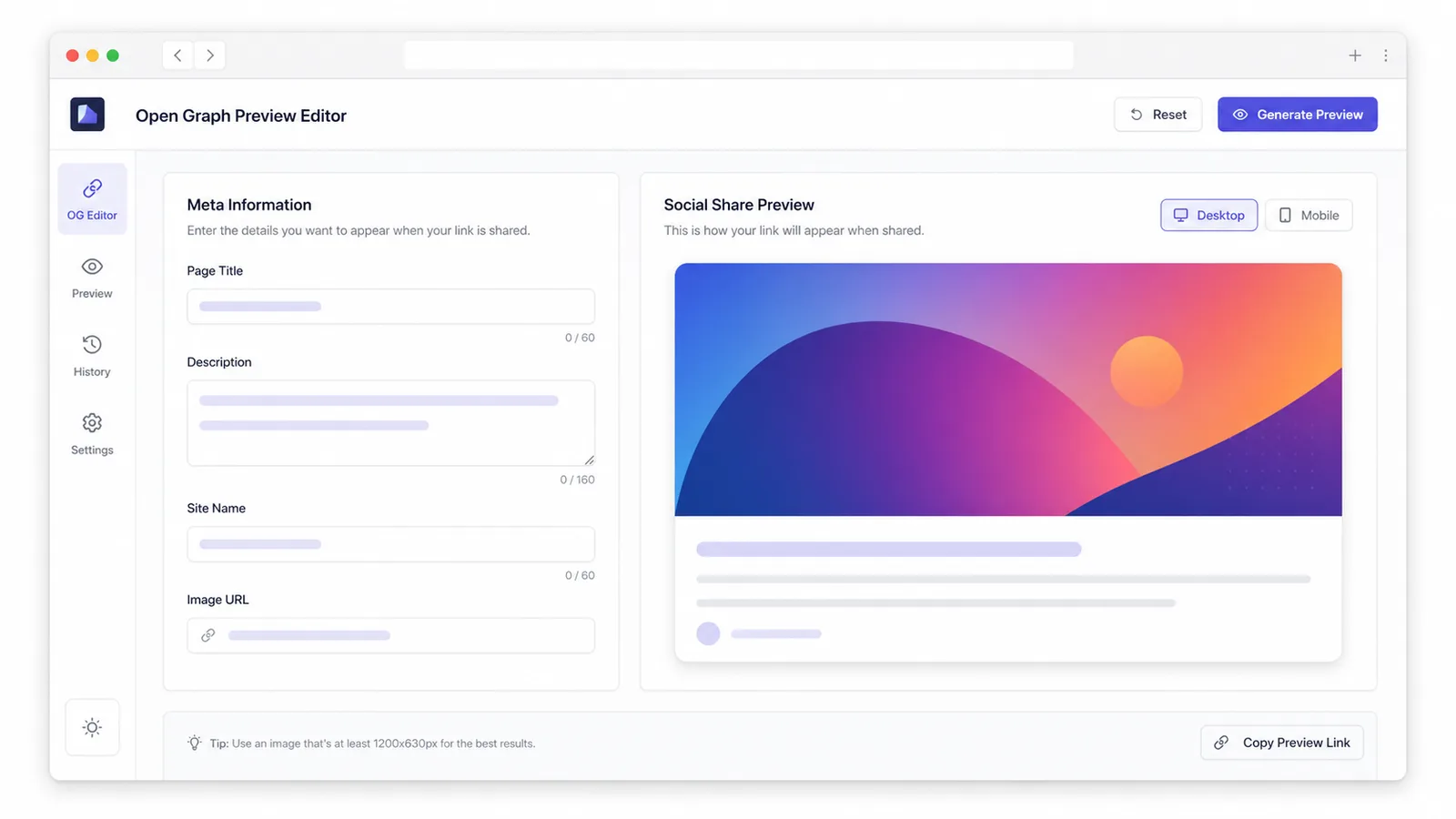
Draft manual share metadata, switch between platform card styles, and catch long titles, incomplete descriptions, or awkward image crops before publishing.
Spot weak social cards before a page is shared.
See when the main promise may disappear behind truncation.
Highlight descriptions that are too thin to explain why a link matters.
Compare the image ratio against the selected social card style.
Combine manual metadata entry, platform switching, and practical quality checks.
Type the title, description, site name, and image URL directly without fetching a page.
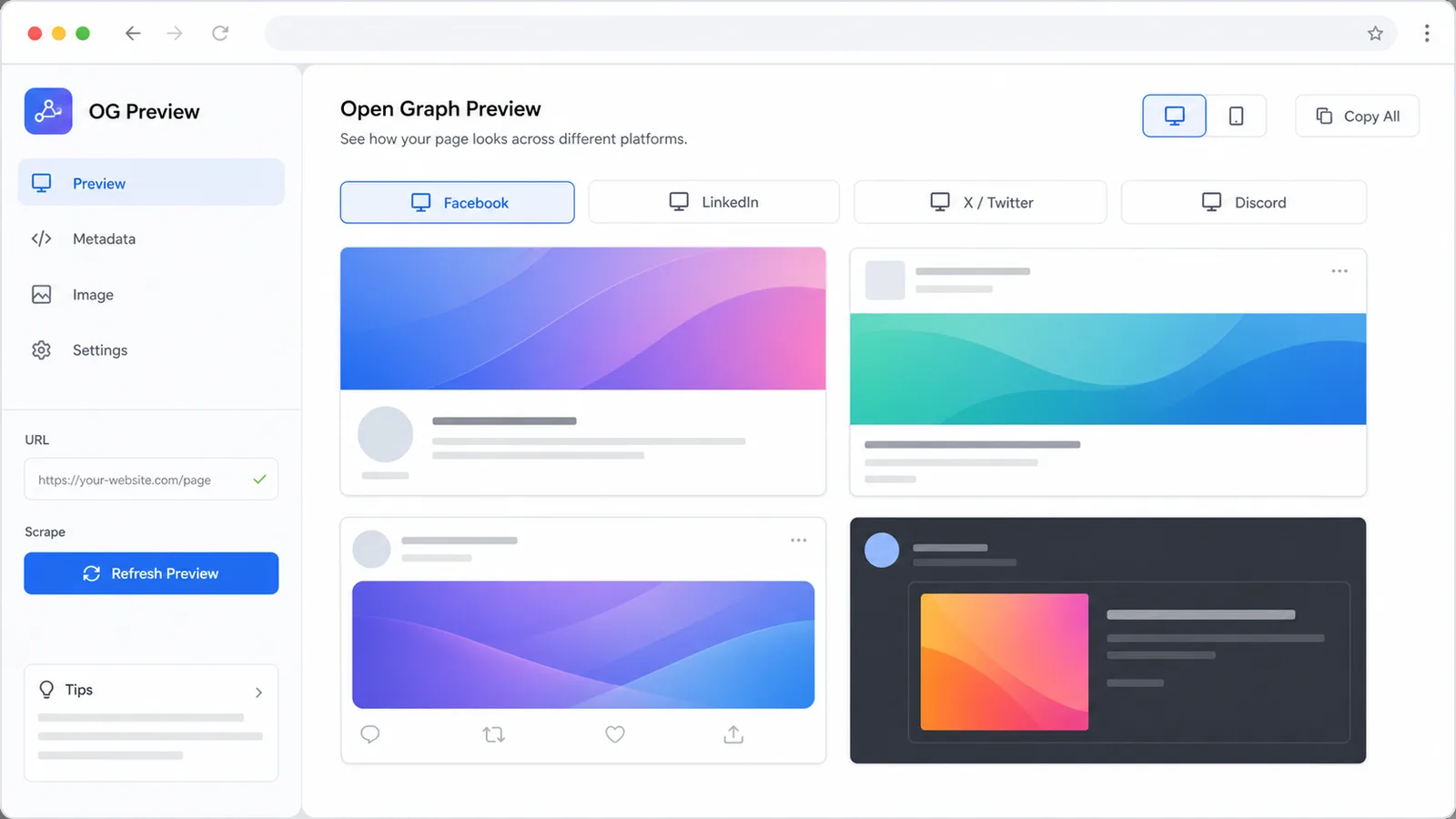
Switch between Facebook, LinkedIn, X/Twitter, and Discord layouts.
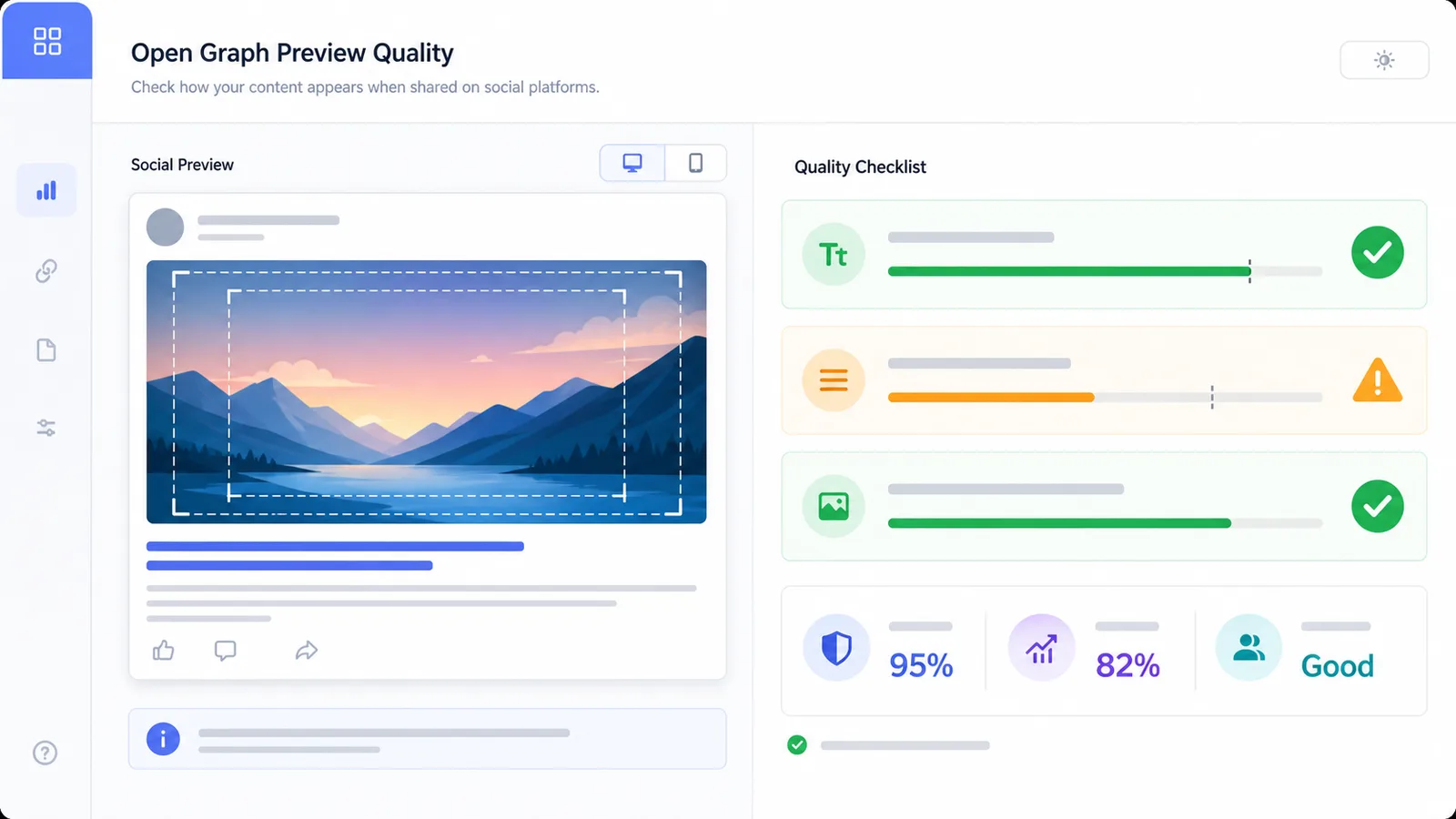
Review title and description limits for the selected platform.
Load the image URL and compare its natural dimensions with common share card ratios.
Run the browser-based draft review before implementation.
Copy the current fields for an editor, developer, or QA checklist.
Follow this workflow before publishing social metadata.
Switch Facebook, LinkedIn, X/Twitter, and Discord to see how the same content feels in each card.
Compare cardsShorten long titles, expand thin descriptions, and replace images that miss the recommended ratio.
Run checksUse the workflow for drafting, platform QA, and final share-card review.
Review card styles for Facebook, LinkedIn, X/Twitter, and Discord.
Useful for SEO, content, product, and developer publishing workflows.
Check whether metadata supports a clear click before launch.
Review article, landing page, and campaign share cards.
Preview product updates before announcing them across social channels.
Confirm the intended title, description, site name, and image before adding tags.
Use this as a drafting aid, not an automatic scraper or live platform validator.
A 1.91:1 image often works well across many cards, but X/Twitter may prefer a wider crop.
Make truncation visible early by putting the page promise near the start of the title.
After drafting, test live metadata with platform debuggers and browse related tools for publishing QA.
Common questions about accuracy, privacy, and images.
No. It is intentionally manual: you enter the title, description, site name, and image URL yourself.
No. It is an approximation for planning. Platforms may crop, cache, or rewrite previews differently.
Yes. When the image URL loads in the browser, the tool reads the natural width and height to estimate ratio fit.
No. The editing and checks run in your browser. The image URL is rendered only so you can see the preview.
Open the tool, paste your next share metadata, and clean up the card before the page goes live.